הכנה של שרת מדיה מ- 0 - הוראות


הסבר על התהליך שלצריך להכין בכדי להכין שרת מולטימדיה מדהים !!!
- התקנה של לינוקס יובונטו סרבר - לינק להורדת קובץ ההתקנה:
https://releases.ubuntu.com/24.04.4/ubuntu-24.04.4-live-server-amd64.iso
יש לבצע את כל ההתקנה במלואה.
- התקנת dockr וגם docker-compose יש להריץ את הפקודה הזאת בטרמינל
1 · Installation
for pkg in docker.io docker-doc docker-compose docker-compose-v2 podman-docker containerd runc; do sudo apt-get remove $pkg; done
sudo apt-get update
sudo apt-get install ca-certificates curl gnupg -y
sudo install -m 0755 -d /etc/apt/keyrings
curl -fsSL https://download.docker.com/linux/ubuntu/gpg | sudo gpg --dearmor -o /etc/apt/keyrings/docker.gpg
sudo chmod a+r /etc/apt/keyrings/docker.gpg
echo \
 "deb [arch=$(dpkg --print-architecture) signed-by=/etc/apt/keyrings/docker.gpg] https://download.docker.com/linux/ubuntu \
 $(. /etc/os-release && echo "$VERSION_CODENAME") stable" | \
 sudo tee /etc/apt/sources.list.d/docker.list > /dev/null
sudo apt-get update
sudo apt-get install docker-ce docker-ce-cli containerd.io docker-buildx-plugin docker-compose-plugin -y
התקנת docker-compose
sudo apt install docker-compose- יש לפתוח את הספריות ומתן הרשאות להתקנת האפליקציות השונות - יש להריץ בטרמינל את הפקודה הבאה
sudo mkdir -p /data/{torrents/{tv,movies,music},media/{tv,movies,music}}
sudo apt install tree
tree /data
sudo chown -R 1000:1000 /data
sudo chmod -R a=,a+rX,u+w,g+w /data
ls -ln /data- יצירה של הקבצים להרצה:
קובץ : docker-compose.yml
sudo nano docker-compose.ymlולהעתיק לתוך הקובץ את כל הקוד הזה:
###############################################
# Common Keys for all apps
###############################################

x-common-keys: &common-keys
    restart: unless-stopped
    logging:
      driver: json-file
    environment:
      PUID: 1000
      PGID: 1000
      TZ: Asia/Jerusalem
    dns:
      - 1.1.1.1
      - 1.0.0.1

services:
###############################################
# RADARR - Movies
###############################################
  radarr:
    <<: *common-keys
    container_name: radarr
    image: ghcr.io/hotio/radarr:latest
    ports:
      - 7878:7878
    volumes:
      - /etc/localtime:/etc/localtime:ro
      - /docker/appdata/radarr:/config
      - /data:/data

###############################################
# SONARR - TV Shows
###############################################

  sonarr:
    <<: *common-keys
    container_name: sonarr
    image: ghcr.io/hotio/sonarr:latest
    ports:
      - 8989:8989
    volumes:
      - /etc/localtime:/etc/localtime:ro
      - /docker/appdata/sonarr:/config
      - /data:/data

###############################################
# LIDARR - Music
###############################################

  lidarr:
    <<: *common-keys
    container_name: lidarr
    image: ghcr.io/hotio/lidarr:latest
    ports:
      - 8686:8686
    volumes:
      - /etc/localtime:/etc/localtime:ro
      - /docker/appdata/lidarr:/config
      - /data:/data

###############################################
# BAZARR - Subtitles
###############################################

  bazarr:
    <<: *common-keys
    container_name: bazarr
    image: ghcr.io/hotio/bazarr:latest
    ports:
      - 6767:6767
    volumes:
      - /etc/localtime:/etc/localtime:ro
      - /docker/appdata/bazarr:/config
      - /data/media:/data/media

###############################################
# PROWLARR - Indexer Manager
###############################################

  prowlarr:
    <<: *common-keys
    container_name: prowlarr
    image: ghcr.io/hotio/prowlarr:latest
    ports:
      - 9696:9696
    volumes:
      - /etc/localtime:/etc/localtime:ro
      - /docker/appdata/prowlarr:/config

###############################################
# QBITTORRENT - Downloader
###############################################

  qbittorrent:
    <<: *common-keys
    container_name: qbittorrent
    image: ghcr.io/hotio/qbittorrent:latest
    ports:
      - 8080:8080
      - 6881:6881
      - 6881:6881/udp
    environment:
      - WEBUI_PORT=8080
      - TORRENTING_PORT=6881
    volumes:
      - /etc/localtime:/etc/localtime:ro
      - /docker/appdata/qbittorrent:/config
      - /data:/data
      - /downloads/completed/movies:/movies
      - /downloads/completed/tv:/tv
      - /downloads/completed/Music:/music

###############################################
# JELLYFIN - Media Server
###############################################

  jellyfin:
    <<: *common-keys
    container_name: jellyfin
    image: ghcr.io/hotio/jellyfin:latest
    volumes:
      - /etc/localtime:/etc/localtime:ro
      - /docker/appdata/jellyfin:/config
      - /data/media:/data/media:ro #read-only
    ports:
      - 8096:8096

###############################################
# filebrowser - files
###############################################

  filebrowser:
    <<: *common-keys
    container_name: filebrowser
    image: gtstef/filebrowser:latest
    ports:
      - 8077:80
    volumes:
      - /docker/appdata/filebrowser/data:/data
      - /docker/appdata/filebrowser/file:/srv
      - /data/media:/srv/media
      - /data/torrents:/srv/qBittorrent_Files
      - /docker/appdata/nzbget/downloads:/srv/nzbget-download
      - /docker/appdata/audiobooks/books:/srv/audiobooks-books
      - /docker/appdata/audiobooks/podcasts:/srv/audiobooks-podcasts


###############################################
# vaultwarden - password server
###############################################

  vaultwarden:
    <<: *common-keys
    container_name: vaultwarden
    image: vaultwarden/server:latest
    volumes:
      - /docker/appdata/vaultwarden/data:/data
    ports:
      - 10380:80

###############################################
# portainer - portainer
###############################################

  portainer:
    <<: *common-keys
    container_name: portainer
    command: --no-setup-token
    image: portainer/portainer-ce:latest
    volumes:
      - /docker/appdata/portainer/data:/data
      - /var/run/docker.sock:/var/run/docker.sock
    ports:
      - 9000:9000

###############################################
# excalidraw - print
###############################################

  excalidraw:
    <<: *common-keys
    container_name: excalidraw
    image: excalidraw/excalidraw:latest
    ports:
      - 3030:80

###############################################
# jellyseerr - jellyseerr
###############################################

  jellyseerr:
    <<: *common-keys
    container_name: jellyseerr
    image: fallenbagel/jellyseerr:latest
    volumes:
      - /docker/appdata/jellyseerr/config:/app/config
    ports:
      - 5055:5055

###############################################
# stirling-pdf - pdf
###############################################

  stirling-pdf:
    <<: *common-keys
    container_name: stirling-pdf
    image: stirlingtools/stirling-pdf:latest
    volumes:
      - /docker/appdata/stirling-data/configs:/configs
    ports:
      - 8020:8080

###############################################
# motioneye - cameras
###############################################

  motioneye:
    <<: *common-keys
    container_name: motioneye
    image: ccrisan/motioneye:master-amd64
    volumes:
      - /docker/appdata/motioneye/config:/etc/motioneye
      - /docker/appdata/motioneye/data:/var/lib/motioneye
    ports:
      - 8765:8765
      - 8081:8081

###############################################
# WireGuard Easy - vpn
###############################################

  WireGuard-Easy:
    <<: *common-keys
    container_name: WireGuard-Easy
    image: weejewel/wg-easy:7
    ports:
      - 51820:51820/udp
      - 51821:51821/tcp
    environment:
      - WG_HOST=media-server
      - PASSWORD=User010203
      - PORT=51821
      - WG_PORT=51820
    volumes:
      - /docker/appdata/wg-easy/wireguard:/etc/wireguard
    cap_add:
      - NET_ADMIN
      - SYS_MODULE

###############################################
# Cloudflared - Cloudflared
###############################################

  Cloudflared:
    container_name: Cloudflared
    image: wisdomsky/cloudflared-web:latest
    ports:
      - 14333:14333
    volumes:
      - /docker/appdata/cloudflared/config:/home/nonroot/.cloudflared

###############################################
# homarr - menu Manager
###############################################

  homarr:
    <<: *common-keys
    container_name: homarr
    image: ghcr.io/homarr-labs/homarr:latest
    ports:
      - 7575:7575
    volumes:
      - /var/run/docker.sock:/var/run/docker.sock
      - /docker/appdata/homarr/appdata:/appdata
    environment:
      - SECRET_ENCRYPTION_KEY=E0AF06FF6D1FA23AE02C026DD4B5D177EEC497E20B74B0AEF8816366CD96E004

###############################################
# audiobookshelf - books
###############################################

  audiobookshelf:
    <<: *common-keys
    container_name: audiobookshelf
    image: ghcr.io/advplyr/audiobookshelf:latest
    volumes:
      - /docker/appdata/audiobooks/books:/audiobooks
      - /docker/appdata/audiobooks/podcasts:/podcasts
      - /docker/appdata/audiobooks/config:/config
      - /docker/appdata/audiobooks/metadata:/metadata
    ports:
      - 13378:80

###############################################
# trilium - notes
###############################################

  trilium:
    <<: *common-keys
    container_name: trilium
    image: triliumnext/trilium:latest
    volumes:
      - /docker/appdata/trilium/data:/home/node/trilium-data
    ports:
      - 8010:8080

###############################################
# NZBGET - Usnet
###############################################

  nzbget:
    <<: *common-keys
    container_name: nzbget
    image: lscr.io/linuxserver/nzbget:latest
    ports:
      - 6789:6789
    volumes:
      - /docker/appdata/nzbget/config:/config
      - /docker/appdata/nzbget/downloads:/downloads

###############################################
# Metube - Download from Youtube
###############################################

  metube:
    <<: *common-keys
    container_name: metube
    image: ghcr.io/alexta69/metube
    ports:
      - 7070:8081
    volumes:
      - /docker/appdata/metube/downloads:/downloads

###############################################
# Pangolin - dns of top2029.com
###############################################

#  newt:
#    image: fosrl/newt
#    container_name: newt
#    restart: unless-stopped
#    environment:
#      - PANGOLIN_ENDPOINT=https://pangolin.top2029.com
#      - NEWT_ID=your_newt_id
#      - NEWT_SECRET=your_newt_secret

###############################################
# ARR Stack Dedicated Network
###############################################

networks:
  default:
    name: arr_network

###############################################
###############################################
לשמור ולצאת מהקובץ ( ctrl+x לאשר ב y ולהקיש enter )
יש להריץ את הפקודה להתקנה:
sudo docker compose up -dהותקנו כל התוכנות האלה:
לראות את הקוד כניסה ראשוני לאפליקציה qBittorrent צריך להריץ את הפקודה הבאה:
sudo docker logs qbittorrentלאחר ההתקנה מומלץ להוריד והעלות את האפליקציות:
sudo docker compose downsudo docker compose up -dיש להמשיך להגדיר את כל אפליקציה לפי ההוראות האלו:
https://file-tg.nigi.cc/-qo4W4Nw9rM?ref=blog.nigi.pro
- התקנה של תוכנת תמונות Immich
יש לפתוח ספריה חדשה בשם immich ולהיכנס אליה
mkdir ./immich-app
cd ./immich-app
יש ליצור 2 קבצים:
יצירת קובץ .env
sudo nano .envהעתקה כל הקוד הזה:
# You can find documentation for all the supported env variables at https://docs.immich.app/install/environment-variables

# The location where your uploaded files are stored
UPLOAD_LOCATION=./docker/appdata/immich/data

# The location where your database files are stored. Network shares are not supported for the database
DB_DATA_LOCATION=./docker/appdata/immich/db-data

# To set a timezone, uncomment the next line and change Etc/UTC to a TZ identifier from this list: https://en.wikipedia.org/wiki/List_of_tz_database_time_zones#List
TZ=Asia/Jerusalem

# The Immich version to use. You can pin this to a specific version like "v2.1.0"
IMMICH_VERSION=v2

# Connection secret for postgres. You should change it to a random password
# Please use only the characters `A-Za-z0-9`, without special characters or spaces
DB_PASSWORD=User010203

# The values below this line do not need to be changed
###################################################################################
DB_USERNAME=user01
DB_DATABASE_NAME=user01
שמירה ויציאה .
יצירה של קובץ docker-compose.yml
sudo nano docker-compose.ymlהעתקת כל הקוד הזה:
#
# WARNING: To install Immich, follow our guide: https://docs.immich.app/install/docker-compose
#
# Make sure to use the docker-compose.yml of the current release:
#
# https://github.com/immich-app/immich/releases/latest/download/docker-compose.yml
#
# The compose file on main may not be compatible with the latest release.

name: immich

services:
  immich-server:
    container_name: immich_server
    image: ghcr.io/immich-app/immich-server:${IMMICH_VERSION:-release}
    # extends:
    #   file: hwaccel.transcoding.yml
    #   service: cpu # set to one of [nvenc, quicksync, rkmpp, vaapi, vaapi-wsl] for accelerated transcoding
    volumes:
      # Do not edit the next line. If you want to change the media storage location on your system, edit the value of UPLOAD_LOCATION in the .env file
      - /docker/appdata/immich/data:/data
      - /etc/localtime:/etc/localtime:ro
    env_file:
      - .env
    ports:
      - '2283:2283'
    depends_on:
      - redis
      - database
    restart: always
    healthcheck:
      disable: false

  immich-machine-learning:
    container_name: immich_machine_learning
    # For hardware acceleration, add one of -[armnn, cuda, rocm, openvino, rknn] to the image tag.
    # Example tag: ${IMMICH_VERSION:-release}-cuda
    image: ghcr.io/immich-app/immich-machine-learning:${IMMICH_VERSION:-release}
    # extends: # uncomment this section for hardware acceleration - see https://docs.immich.app/features/ml-hardware-acceleration
    #   file: hwaccel.ml.yml
    #   service: cpu # set to one of [armnn, cuda, rocm, openvino, openvino-wsl, rknn] for accelerated inference - use the `-wsl` version for WSL2 where applicable
    volumes:
      - model-cache:/cache
    env_file:
      - .env
    restart: always
    healthcheck:
      disable: false

  redis:
    container_name: immich_redis
    image: docker.io/valkey/valkey:9@sha256:546304417feac0874c3dd576e0952c6bb8f06bb4093ea0c9ca303c73cf458f63
    healthcheck:
      test: redis-cli ping || exit 1
    restart: always

  database:
    container_name: immich_postgres
    image: ghcr.io/immich-app/postgres:14-vectorchord0.4.3-pgvectors0.2.0@sha256:bcf63357191b76a916ae5eb93464d65c07511da41e3bf7a8416db519b40b1c23
    environment:
      POSTGRES_PASSWORD: User010203
      POSTGRES_USER: user01
      POSTGRES_DB: user01
      POSTGRES_INITDB_ARGS: '--data-checksums'
      # Uncomment the DB_STORAGE_TYPE: 'HDD' var if your database isn't stored on SSDs
      # DB_STORAGE_TYPE: 'HDD'
    volumes:
      # Do not edit the next line. If you want to change the database storage location on your system, edit the value of DB_DATA_LOCATION in the .env file
      - /docker/appdata/immich/data:/var/lib/postgresql/data
    shm_size: 128mb
    restart: always
    healthcheck:
      disable: false

volumes:
  model-cache:
שמירה ויציאה.
יש להריץ את הפקודה להתקנה:
sudo docker compose up -dבמידה ורוצים לבצע כיבוי של המחשב ניתן להריץ בטרמינל:
sudo shutdown -h now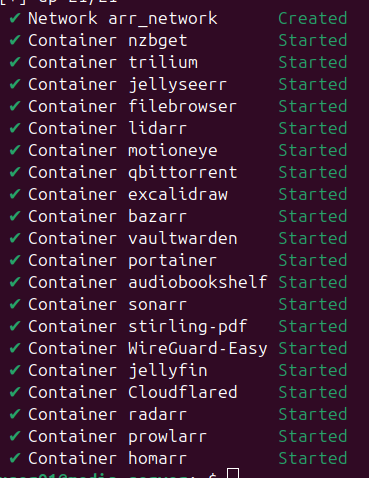
לשינוי הכתובת IP
sudo nano /etc/netplan/50-cloud-init.yamlConfigure Static IP Address
Modify the file to look similar to the example below. Ensure correct spacing, as YAML is strict about indentation (use spaces, not tabs).
Zenarmor +1yaml
network:
  version: 2
  renderer: networkd
  ethernets:
    enp0s3:                # Replace with your interface name
      dhcp4: no
      addresses:
        - 192.168.1.10/24  # Your new IP address and CIDR subnet
      routes:
        - to: default
          via: 192.168.1.1 # Your gateway IP
      nameservers:
        addresses: # DNS servers
4. Apply the Changes
Save the file (

) and exit (


). Apply the changes: bash
sudo netplan apply
5. Verify the New IP Address
Check the IP address again to confirm the change:
Zenarmor +1bash
ip a
התקנת שרת קבצים OwnCloud
חלק א - יצירת ספריה וכניסה אליה
mkdir -p ~/owncloud-docker
cd ~/owncloud-docker
חלק ב - יצירה של קובץ docker-compose.yml
sudo nano docker-compose.yml
יש להחניס לקובץ את המלל הזה:
version: '3'
services:
  owncloud:
    image: owncloud/server:latest
    restart: always
    ports:
      - "8060:8080"
    volumes:
      - /docker/appdata/owncloud/data:/mnt/data
    environment:
      - OWNCLOUD_DOMAIN=your-vm-ip:8060
      - OWNCLOUD_TRUSTED_DOMAINS=10.100.102.140
      - OWNCLOUD_ADMIN_USERNAME=admin
      - OWNCLOUD_ADMIN_PASSWORD=AdminPass123!
      - OWNCLOUD_MYSQL_DATABASE=owncloud
      - OWNCLOUD_MYSQL_USER=owncloud
      - OWNCLOUD_MYSQL_PASSWORD=Pass9010Cloud
      - OWNCLOUD_MYSQL_HOST=db
  db:
    image: mariadb:latest
    restart: always
    environment:
      - MYSQL_ROOT_PASSWORD=1234567890
      - MYSQL_DATABASE=owncloud
      - MYSQL_USER=owncloud
      - MYSQL_PASSWORD=Pass9010Cloud
    volumes:
      - /docker/appdata/owncloud/db_data:/var/lib/mysql
volumes:
  owncloud_data:
  db_data:
הערה חשובה: יש לשים לב לשנות את הפורט והכתובת IP
חלק ג להריץ את הפקודה
sudo docker compose up -d
חלק ד - יש להיכנס לכתובת והפורט לדוגמא http://10.100.102.140:8060
יש להיכנס עם השם משתמש והסיסמא שמופיעים בקובץ ( docker-compose.yml )
במקרה הזה השם: admin וסיסמא: AdminPass123
הגדלת גודל המחיצה להתאים לגודל הדיסק (NVME)
השלבים הם:
lsblk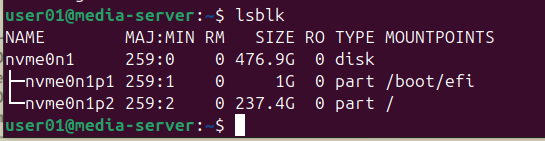
sudo cfdisk /dev/nvme0n1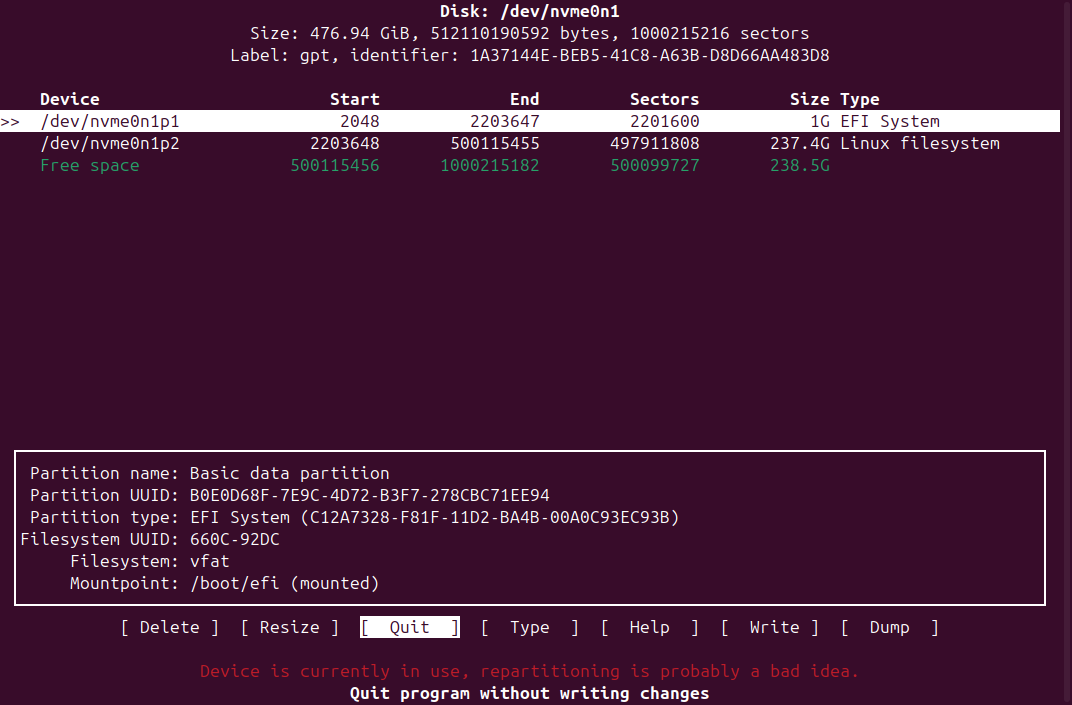
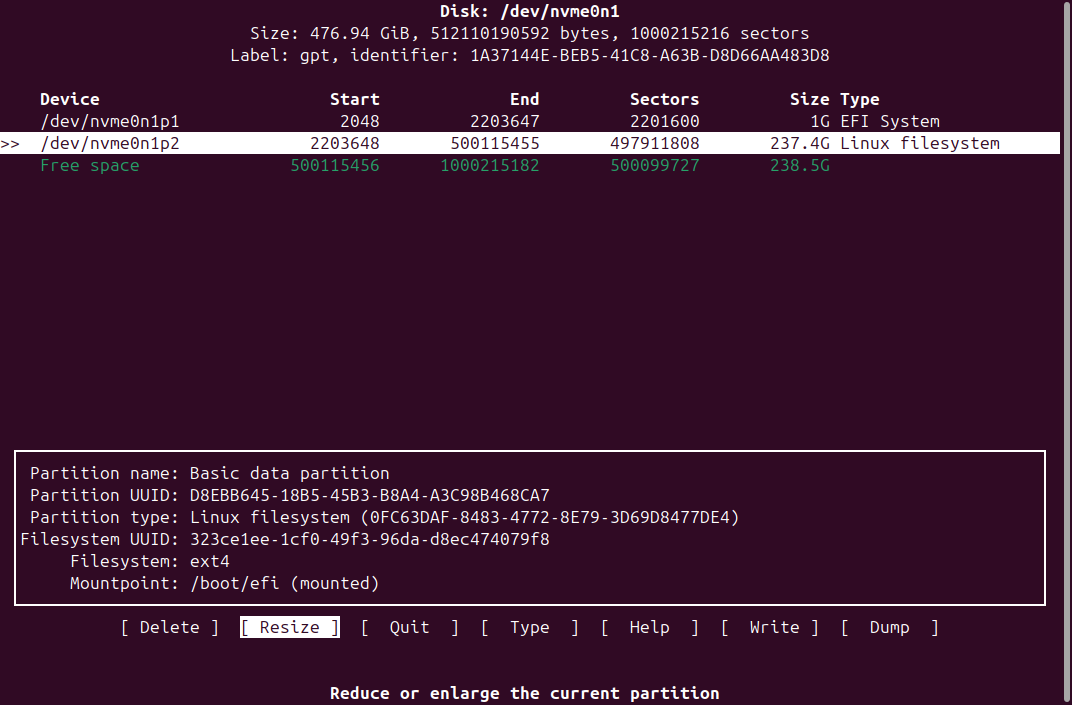
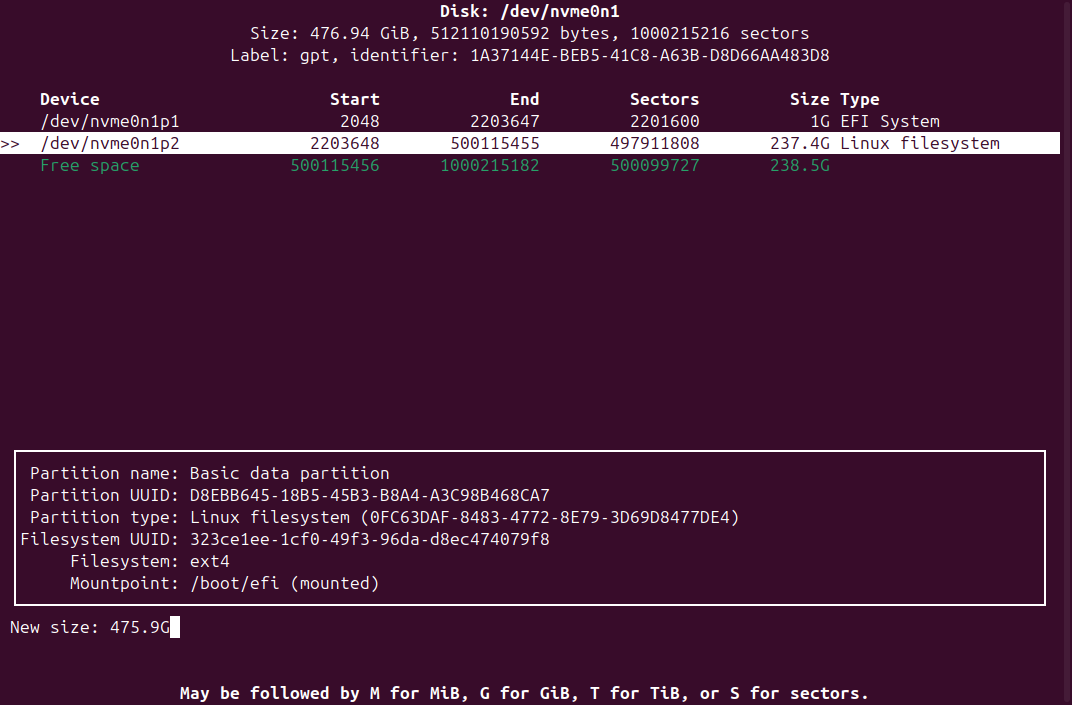
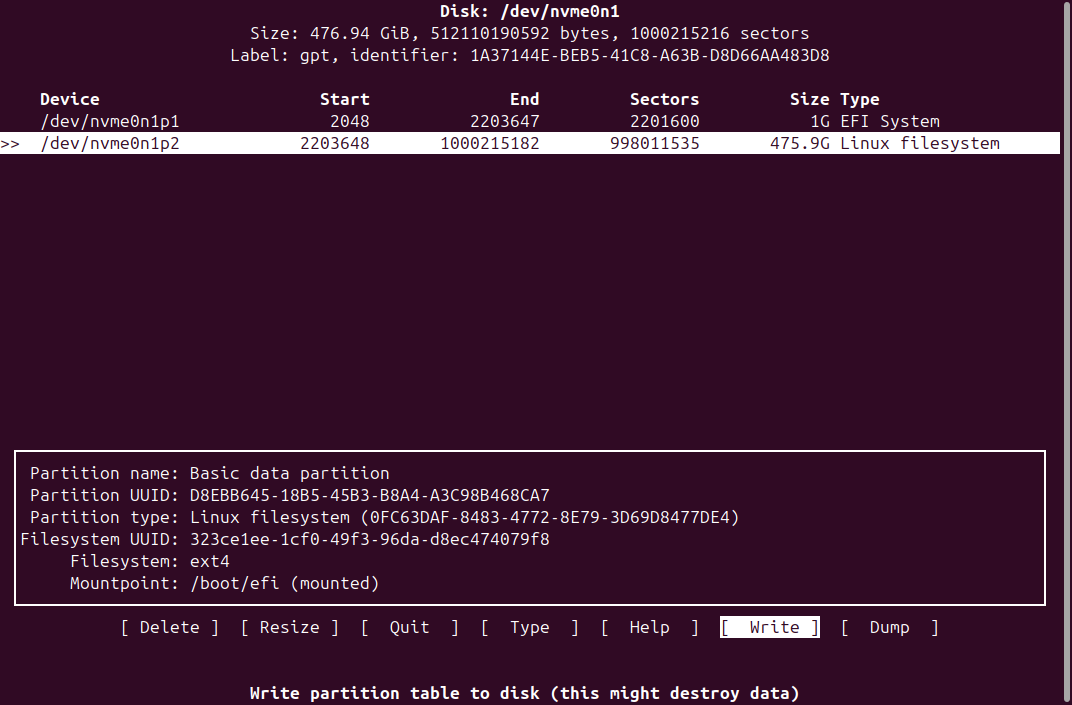
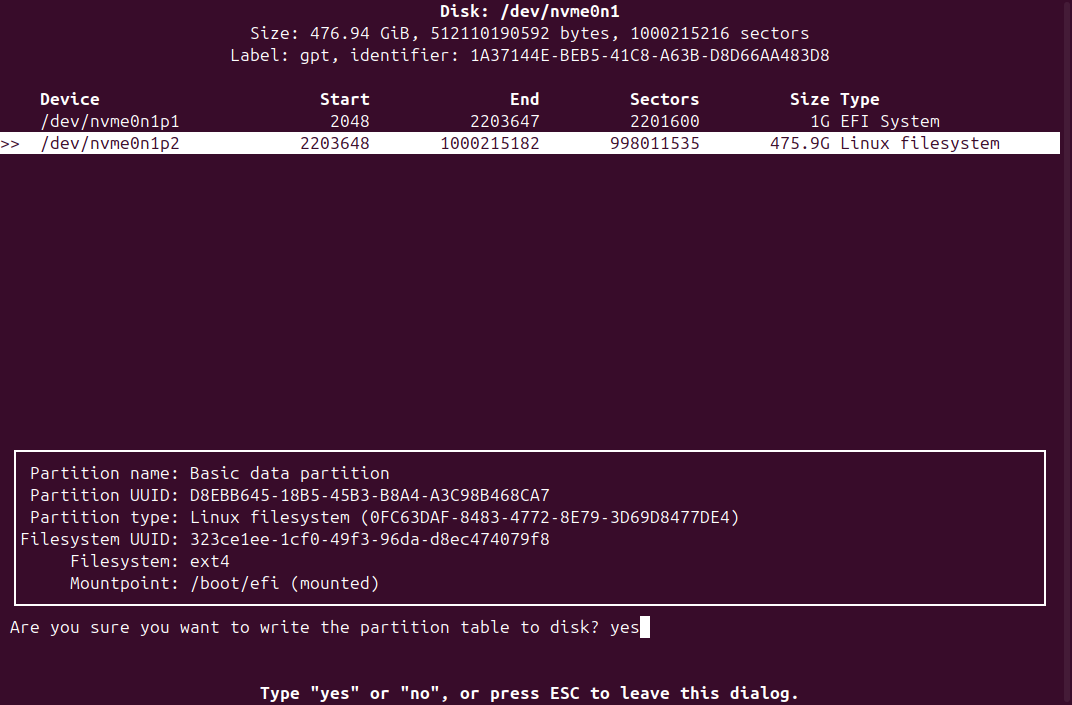
יש להקיש ENTER
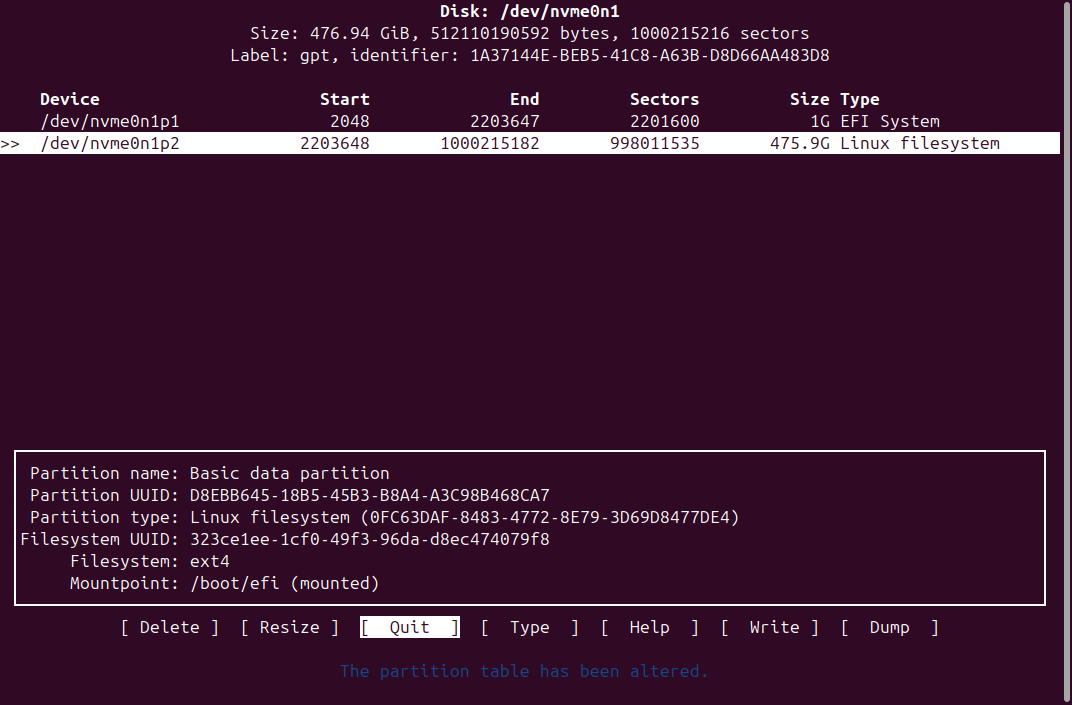
- Increase Disk Size (Host Level): Increase the storage size in your virtualization platform (e.g., vSphere, AWS Console) or physical server BIOS.
- Scan for Free Space: Run
lsblkto identify the disk (e.g.,/dev/nvme0n1) that has increased capacity. - Resize the Partition: Use
cfdiskto resize the partition, which is often the easiest method.- Run
sudo cfdisk /dev/nvme0n1. - Select the partition (e.g.,
/dev/nvme0n1p1 - Select Write, type
yes, and then Quit.
- Run
sudo growpart /dev/nvme0n1 2sudo resize2fs /dev/nvme0n1p2